

It’s very important for people to be able to get hold of you. You can build a strong audience if they’re able to contact you and the best way is with a contact form. You’ve seen them before on Contact Us pages and such, so it’s time we add one to your site.
The plugin I like to use, at least that’s free, is one called Contact Form 7. I’ll go through how to download it, set it up and also how to add a simple captcha box to stop automated spam messages flood your mailbox.
Let’s set this mother up! 😀

WordPress Complete Setup Guide

INSTALLING THE PLUGIN
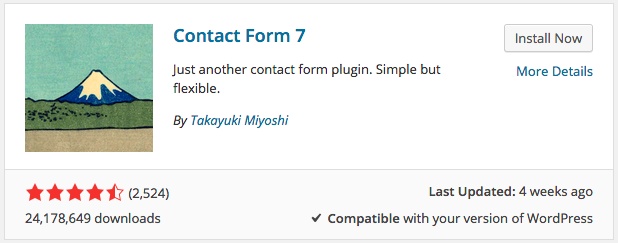
Head into the plugins section, add new plugin and search for Contact Form 7. So that’s Plugins -> Add New -> Search: Contact Form 7. You’re looking for this, which should be the top result:
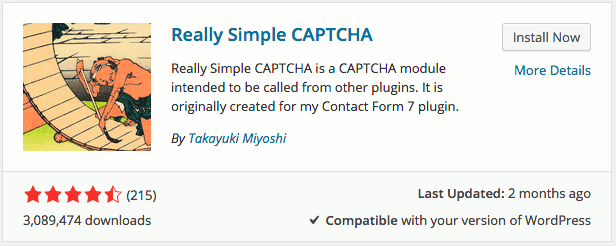
Click install now and once that’s done return to the “Add New Plugins” and search for Really Simple Captcha. That’s Plugins -> Add New -> Search: Really Simple Captcha which should look like this:
Once we’ve installed these 2 plugins we can set up our first contact form. Make sure you have a “Contact Us” page created as I’ll be demonstrating how to install a contact form there.
CREATING THE CONTACT FORM
We now have both plugins installed so we should see a new item in our WordPress Dashboard saying “Contact”. Just like this:
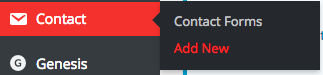
Click on Add New so we can now create our new contact form. It may ask you to select your default language so select which you want and click Add New. We should be seeing a new screen that looks something like this:
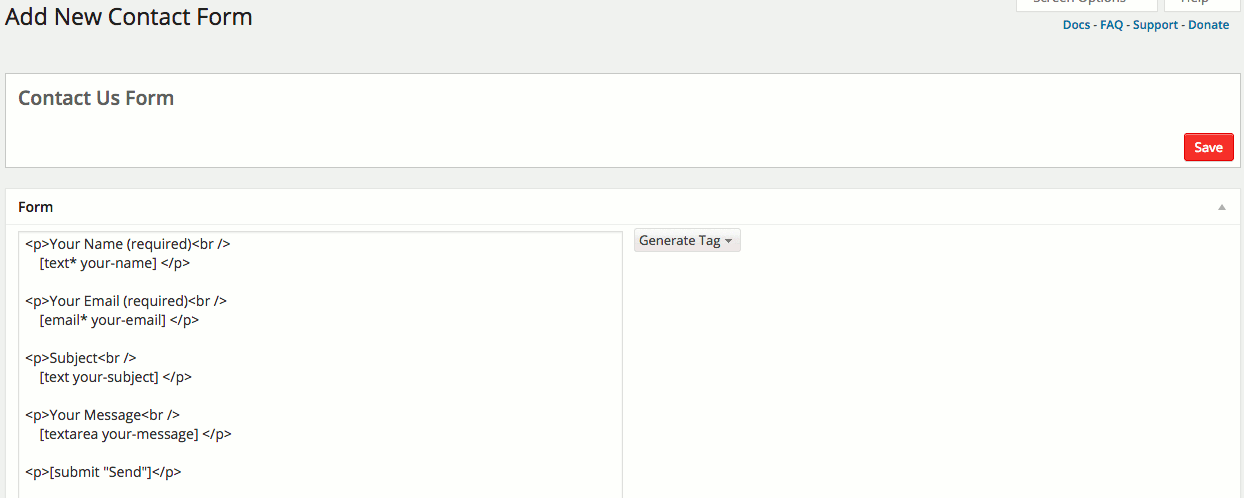
I’ve gone and named the form as “Contact Us Form” but you can renamed your’s to whatever you like. As you can see in the picture above, in the left is what will appear on our contact form. We have:
- Name
- Email Address
- Subject
- Your Message
- Submit
What we are going to do now is add the captcha box. We are going to click on the Generate Tag dropdown box on the right of the image above and select “CAPTCHA”. This will open up a new section where we can customise the captcha box:
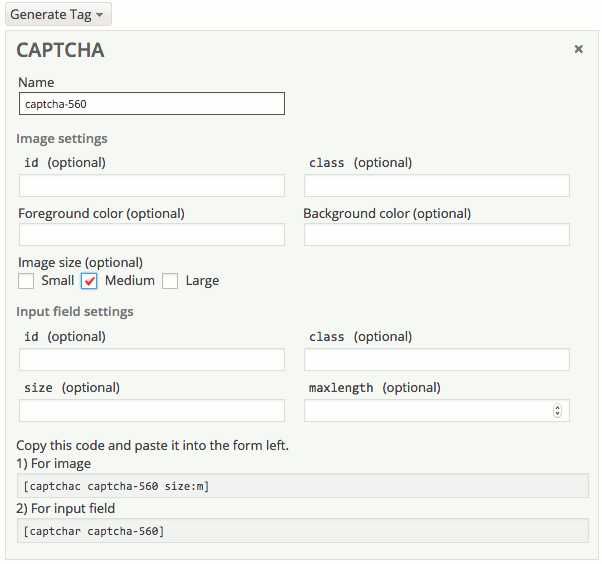
For simplicity we are going to leave it as it is. All I’ve changed in the image above in the image size. I’ve set it to show medium sized images because I hate it when I see other sites have small captcha images.
Makes me feel old and that I’m going blind!
So change that if you want as well. Right at the bottom there it says “Copy this code and paste it into the form left” so guess what we are going to do? That’s right. Copy and paste the “For image” code at the bottom of the form on the left and then the “For input field” underneath that so it looks like this:
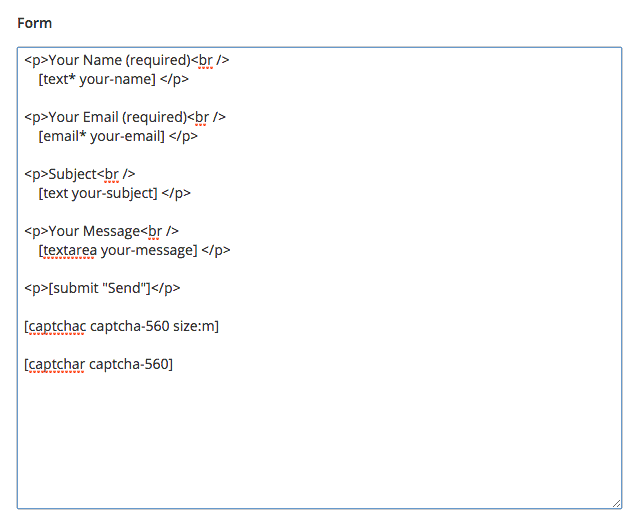
Sweet! Now no bots will be able to flood your inbox with spam. Damn spam! You can rearrange where everything is later on if you wanted. I like to move the send button to the bottom so all you’d need to do there is move it to the bottom. Pretty easy copy and paste stuff.
Now we need to select where the messages will be sent when someone fills out the form. To do that we just need to scroll down the page a little bit to the next section.
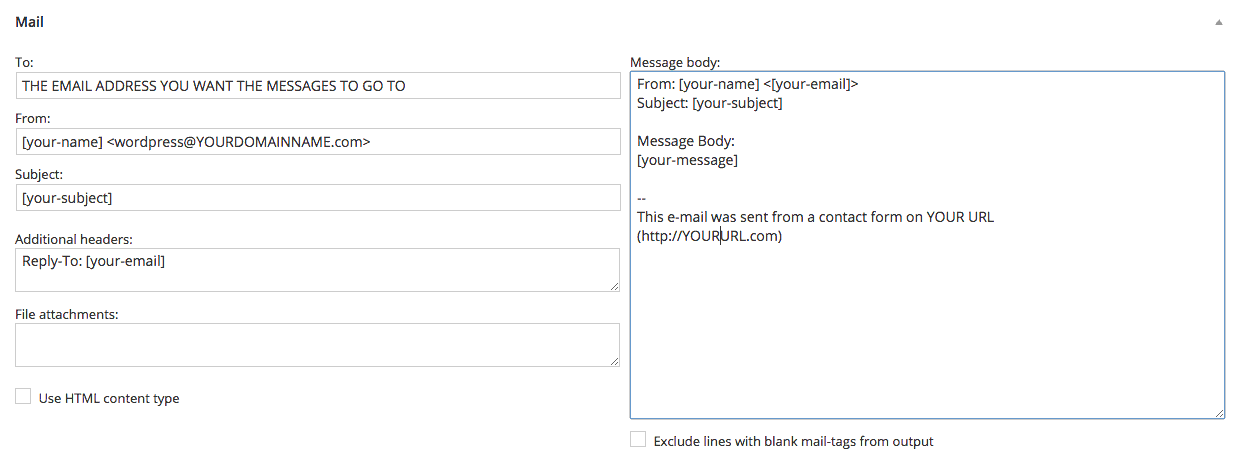
If this looks a little confusing don’t panic! The section on the right is how the message will appear to you in your inbox when someone sends you a message. The left section is where we want to look at the moment.
At the top in the “To:” box you want to put in the email address you want these messages to be sent. If you’ve created a contact@ email address or something similar already then you’d put that there. If not, your email address will do. The “From:” address will be the email address will be the email address that will appear in the senders inbox when you reply to the message. I usually change this to the email address the emails are being sent to but again, you can change this to whatever you wish.
Once you’ve done all that hit save and then we can add the shortcode you’ll be given for the contact form into our Contact Us page.
ADDING THE FORM TO OUR CONTACT US PAGE
When you look at the contact section in the WordPress Dashboard you should see a shortcode for the form we just created. Will look something like this:

We’ll need to copy this shortcode because this will place our contact form wherever we want. We can put in our sidebar, footer… Literally any idea where we can add a shortcode. We’ll be adding this to our Contact Us page. Open up the page and paste the shortcode into the text area like so:
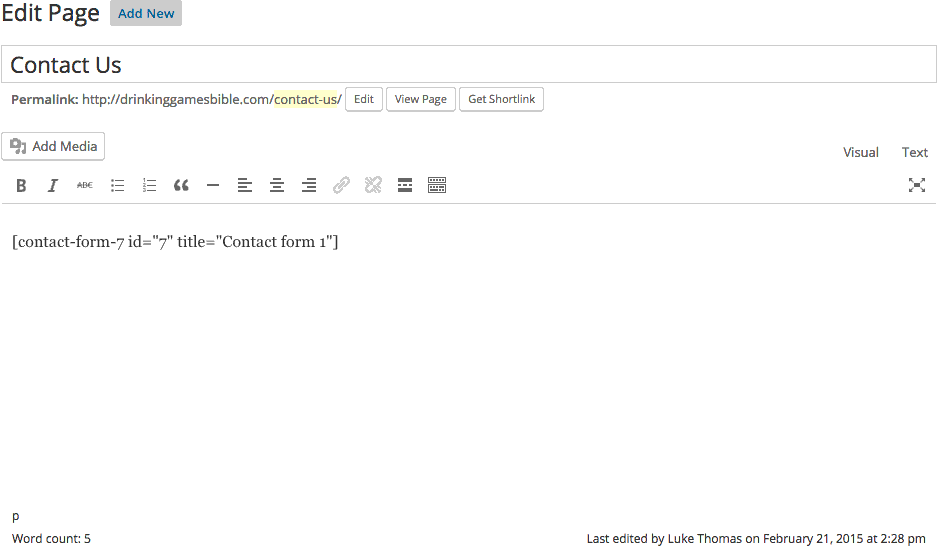
If you wanted to add a little bit of text above it telling the visitor that they can contact you by filling in the form below the you can do. Just make sure the shortcode is on a separate line all by itself. Hit publish or update and your form will now be on the page. Head to your contact us page and you’ll see your brand new form looking sexy. Here’s what we created:
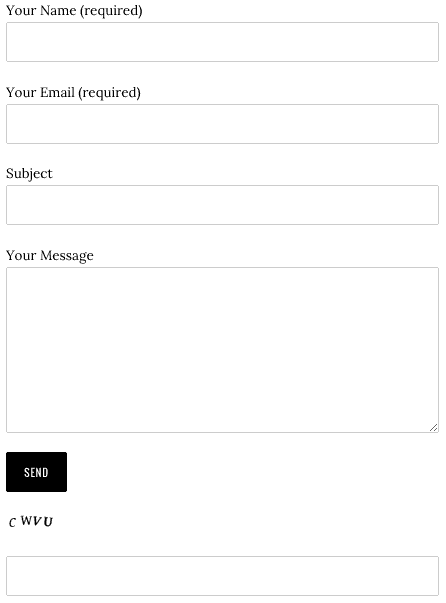
Damn we’re good! Now people can contact you on your site. If you have any questions about any of this just give me a shout in the comments section below.
WordPress Complete Setup Guide
Until next time dudes and dudettes


