

Being able to share your website on social media is pretty important nowadays. The guys over at SumoMe are on the ball when it comes to this. Their “app”, or plugin to the rest of us, is actually several plugins all in one which you can download and activate one by one from within the plugin itself.
You don’t have to add anything you don’t want. Pretty awesome isn’t it!?
At the moment I use 2 features of the SumoMe plugin and they’re for social sharing. They also have several list building tools on there too but I don’t use them at the moment. If I do, I’ll let you dudes and dudettes know.
So anyway, let’s go through how to set up SumoMe to add social buttons to your website with “Social” and “Image Sharer”

WordPress Complete Setup Guide

DOWNLOADING SUMOME
You can either head over to the SumoMe website and download the WordPress plugin or search SumoMe inside the WordPress dashboard under Plugins -> Add New. If you’re searching with the WordPress Dashboard you’re looking for this plugin, it should be the first result:
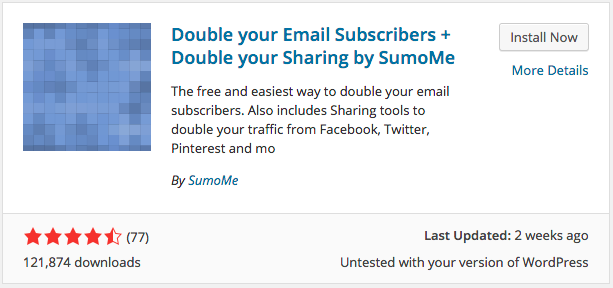
Hit install now and you’ll see SumoMe in the WordPress Dashboard:

If you can see this then you’ve done the first step correctly. Now it’s time to link SumoMe to your site.
ACTIVATING SUMOME WITH YOUR WEBSITE
In the top right corner of your browser will be a little blue tab. Click on the tab and it’ll open up showing a little crown.Hit sign up and fill in the details you’re asked for. Once this is done we can then select the 2 features we wish to add to our site:
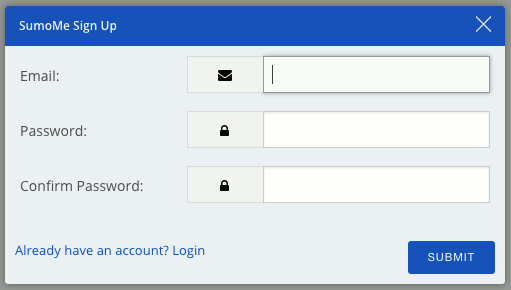
Quickly fill out this form and you may have to confirm your account if they send you a confirmation email. Maybe they will, maybe they won’t. Either way when you go back to your website and click on that little crown in the blue tag you’ll now see a different box appear:
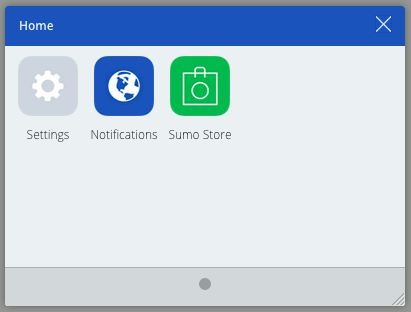
We now need to go and install the 2 apps on the SumoMe plugin. Click on Sumo Store and you’ll be able to see all the cool stuff you can add to your website with this little plugin. On the first page, surf around until you see the “Sharing” section:
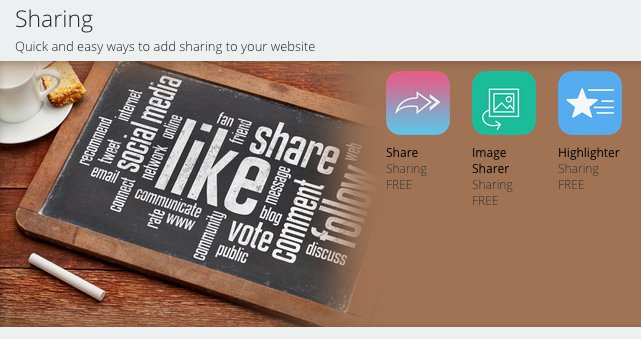
Go ahead and click on “Share” which will take you to:

Go ahead and click the blue “Free” button which will add the app to your plugin. Then go back and do the same for the Image Sharer app too. Now it’s time to setup these 2 apps!
SETTING UP SHARE FOR THE SUMOME PLUGIN
Share is what will add the social icons to your posts and pages. Now this is how I set this plugin up but feel free to have a play around with what you can do. Go back to your website and click on the blue SumoMe crown again. This time you’ll see the “Share” icon and then go click on that. We are going to check out the layout first:
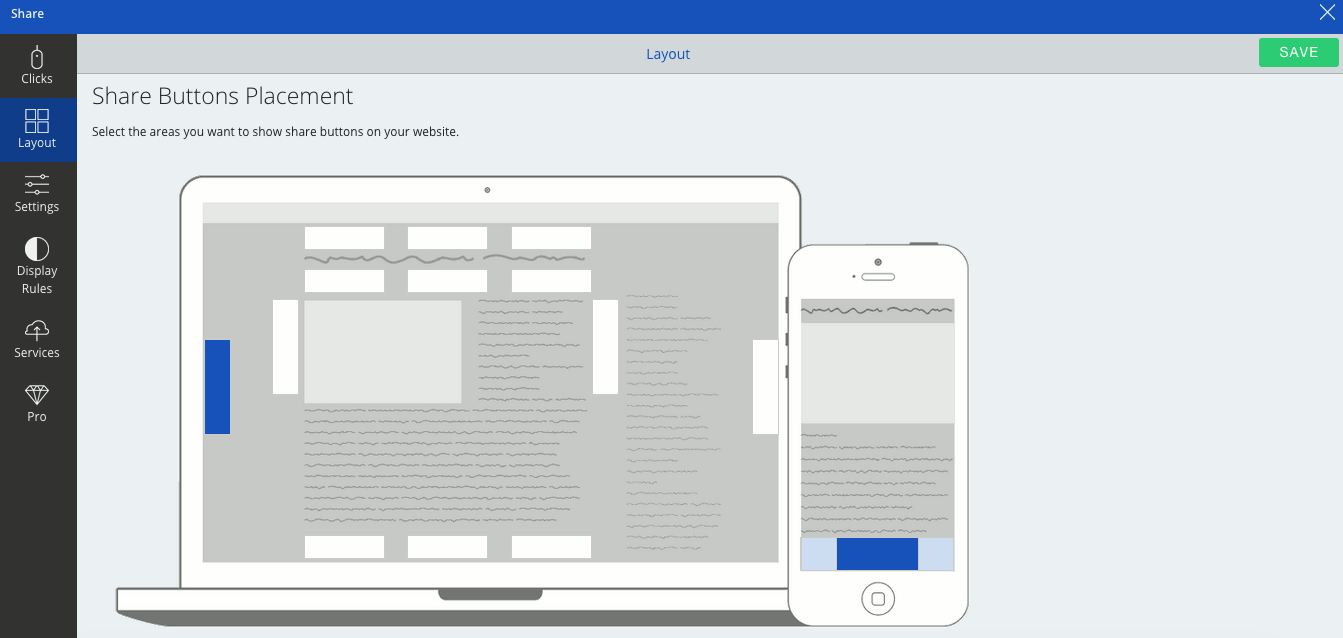
Here you can select where you want the social icons to appear. If you have it set like I have here then the icons will move up and down as you scroll up and down the page. This is nice because they’re always in front of the visitors eyes for them to click on if they wanted to. You can also see where they appear on mobile devices too. This is an awesome added feature.
The creator, Noah Kagan, said that finding a good social plugin that works well on a mobile device is hard to find. So instead of searching for one he just created one. That’s when SumoMe was born, so thanks Noah! Next we have the settings section:
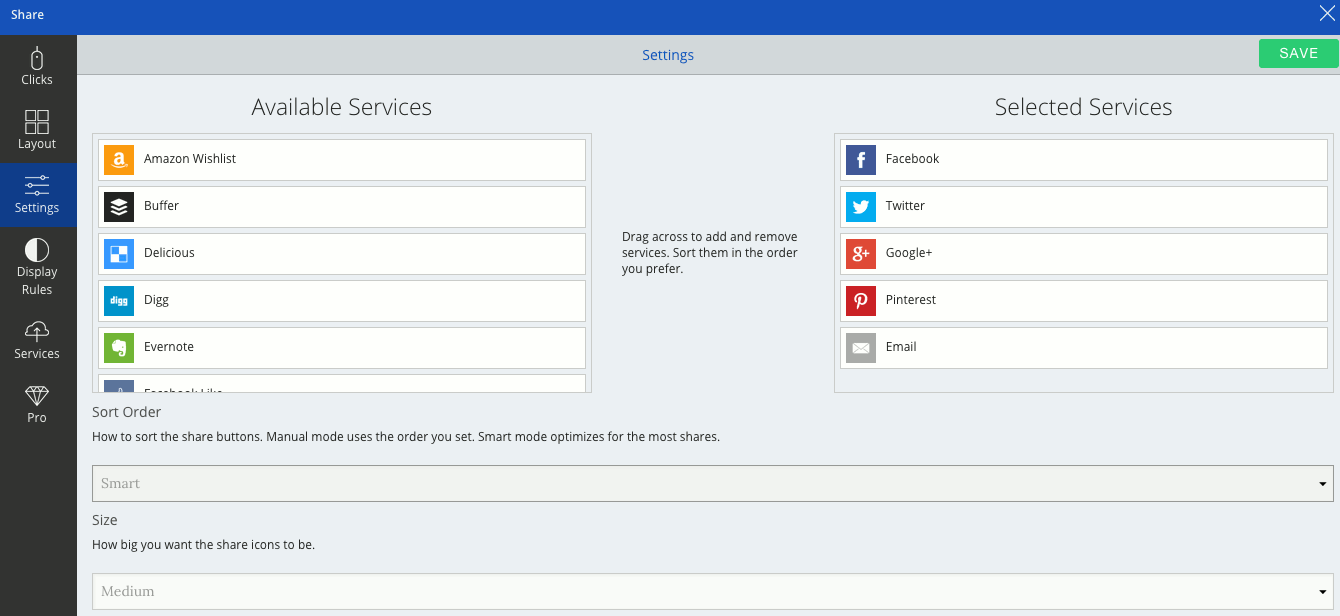
The icons on the right are the ones that appear on your website. If you wanted to add any others then just drag them across from the list on the left. You can also rearrange the order by dragging and dropping them. If you make any changes make sure you hit the green “Save” button in the top right corner!
The last section I’m going to cover is the services section:
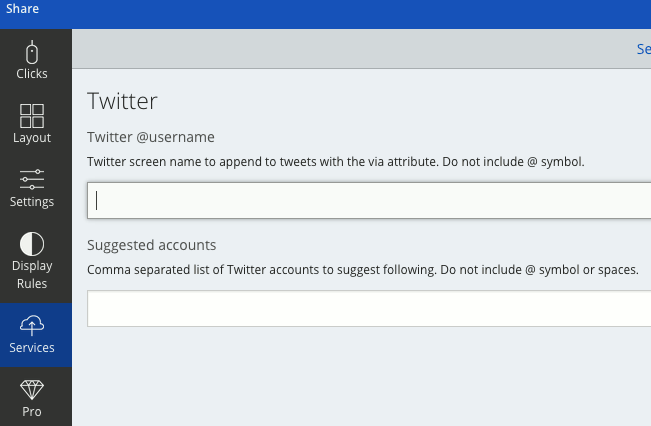
If you have a Twitter account make sure you add it here. If anyone tweets your content your Twitter handle will also appear in the tweet so you may gain some extra followers. Another nice added bonus.
That’s pretty much it for the “Share” app in the SumoMe plugin. Going to go through “Image Sharer” now which puts Facebook, Twitter and Pinterest icons on your images so people can share just the images on social media. When they’re shared they’ll also link back to your site. This is particularly useful if your site is image heavy and you get a lot of traffic from Pinterest. Pinterest can explode you traffic growth with this app!
SETTING UP IMAGE SHARER FOR THE SUMOME PLUGIN
Click on the little blue crown again and this time click on the “Image Sharer” icon. Now click on the settings tab and let’s go through it:
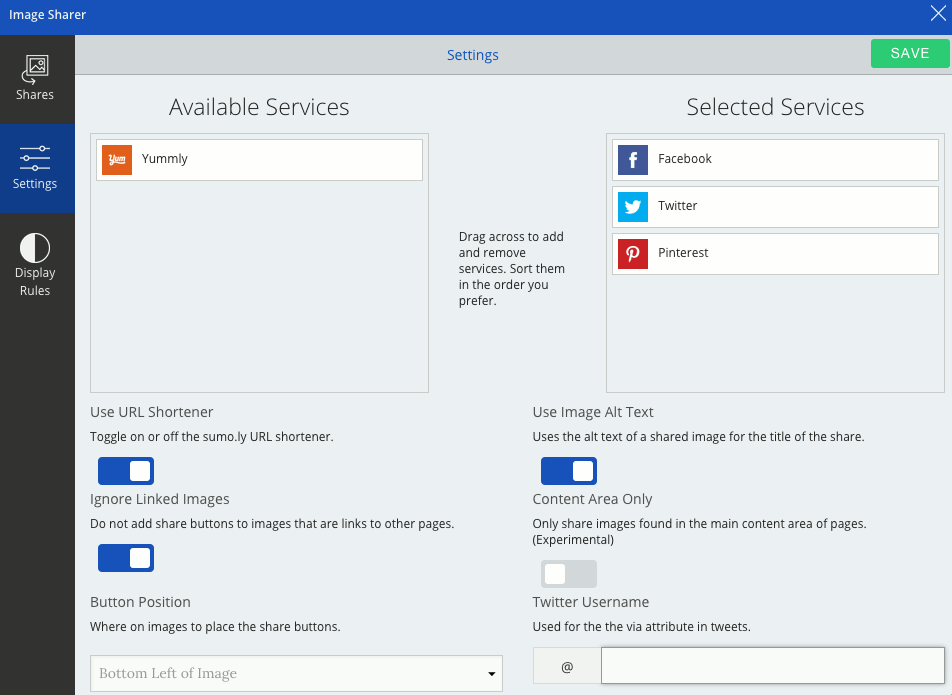
Very simple set up for this app. All I do is change the “Button Position” to make the icons appear in the bottom left of the image instead of the centre which is the default. I also add my Twitter handle for the site on the right. Again, so that if the image is tweeted your handle will be added to the tweet.
That’s for this app. Just make sure you hit the green “Save” button in the top right corner.
They’ll look like this on your images:

You can go into the “Display Rules” and decide where you want or don’t want the buttons to appear on images. I normally set it to not show the buttons on the home page but that’s just a personal preference.
YOUR WEBSITE IS SET FOR SOCIAL VIRAL EXPLOSIONS!
Now you have some awesome social icons placed on your site. Your posts and pages are ready to be shared, and even better, so are all your images. Pinterest is getting massive so having “Pin It” buttons on all your images as well could see your images go viral on there.
WordPress Complete Setup Guide
Any questions about setting up this plugin just throw them in the comments below. I want to know if you love this plugin and it’s “apps” as much as I do.
Until next time dudes and dudettes!


